> ## Documentation Index
> Fetch the complete documentation index at: https://myinternshiporganizer.com/docs/llms.txt
> Use this file to discover all available pages before exploring further.
# Add a host firm
> Add a company that can take interns, so you can place interns with it.
Host firms are the companies that take your interns. Add a firm once and it
stays available for every future internship, so most of this work happens early
and then pays off repeatedly.
Adding a firm doesn't place anyone with it — it puts the company on your list so
you can call them. Securing an actual place happens on the phone, and gets
recorded as a [recruitment call](/docs/how-to/log-a-recruitment-call).
## Before you begin
* Any role can add a host firm.
* Check the firm isn't already in your list. There's no way to merge duplicate
firms, so it's much easier to avoid creating one.
## Add the firm
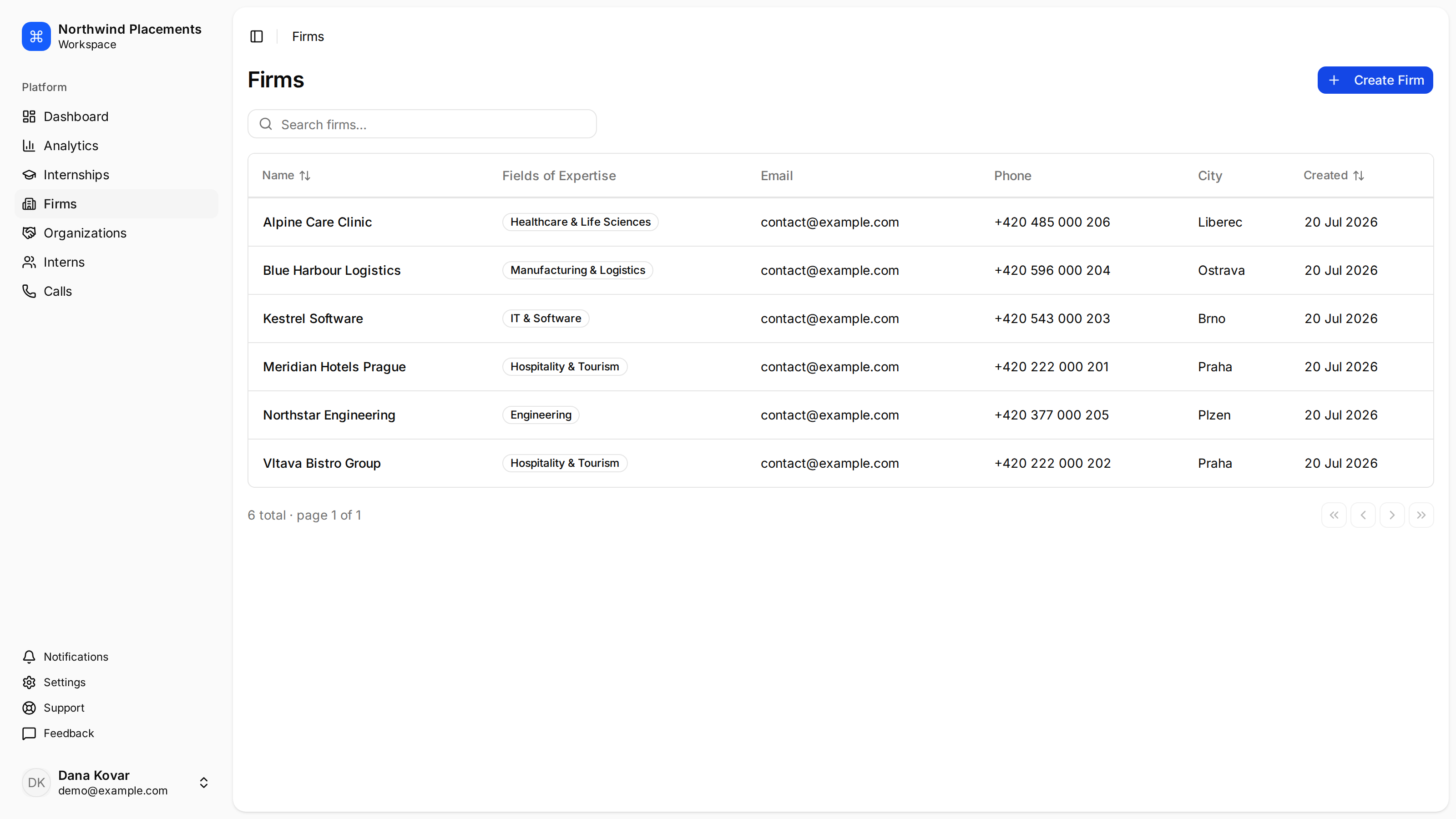
In the sidebar, select **Firms**.
Select **Create Firm**.
In **Name**, start typing the company's name. Minto searches for real places
and offers matches as you type.
Choose a match to fill in the address automatically. If the company doesn't
appear, keep typing the full name and continue — you can add the address
afterwards.
Select **Create**.
## Result
The firm appears in your firms list and can be chosen when you place an intern.
 ## Add the details that matter
A firm with only a name is enough to save, but not enough to be useful. Open the
firm and add its **employees** — the people you speak to. They're needed before
you can send the firm a share link.
The firm's **fields of expertise** decide whether it appears under
**Recommended** when you're looking for somewhere to place interns. There's no
control for setting them in the app today, so ask Minto support to record them —
see [How firms get recommended](/docs/reference/firm-recommendations).
## Next
A firm on your list isn't a place yet. Call them and record what they said.
## Troubleshooting
**The company doesn't appear in the search.**
The search covers registered places, so small or very new companies are often
missing. Type the full name and select **Create** anyway, then add the address
by editing the firm.
**You already have the firm twice.**
Firms can't be merged, and there's no way to remove one from the app. Pick one
to keep and stop using the other.
## Add the details that matter
A firm with only a name is enough to save, but not enough to be useful. Open the
firm and add its **employees** — the people you speak to. They're needed before
you can send the firm a share link.
The firm's **fields of expertise** decide whether it appears under
**Recommended** when you're looking for somewhere to place interns. There's no
control for setting them in the app today, so ask Minto support to record them —
see [How firms get recommended](/docs/reference/firm-recommendations).
## Next
A firm on your list isn't a place yet. Call them and record what they said.
## Troubleshooting
**The company doesn't appear in the search.**
The search covers registered places, so small or very new companies are often
missing. Type the full name and select **Create** anyway, then add the address
by editing the firm.
**You already have the firm twice.**
Firms can't be merged, and there's no way to remove one from the app. Pick one
to keep and stop using the other.