> ## Documentation Index
> Fetch the complete documentation index at: https://myinternshiporganizer.com/docs/llms.txt
> Use this file to discover all available pages before exploring further.
# Connect a sending organization
> Link the school or agency sending you students, or create a placeholder for one.
Sending organizations are the schools and agencies abroad that send you
students. Linking one lets you set it on internships and, when it has its own
Minto account, lets both sides work from the same records.
There are two ways in, depending on whether they already use Minto.
They already use Minto. You exchange codes and both organizations are
linked to each other.
They don't use Minto yet. You create a placeholder to work with in the
meantime.
## Before you begin
* Any role can connect an organization.
* To connect, you need the organization's **connection code**. They'll find it
under their own **Settings** > **Company** and send it to you.
## Connect an organization that uses Minto
In the sidebar, select **Organizations**.
Select **Connect**.
Enter the code they gave you, then select **Connect**.
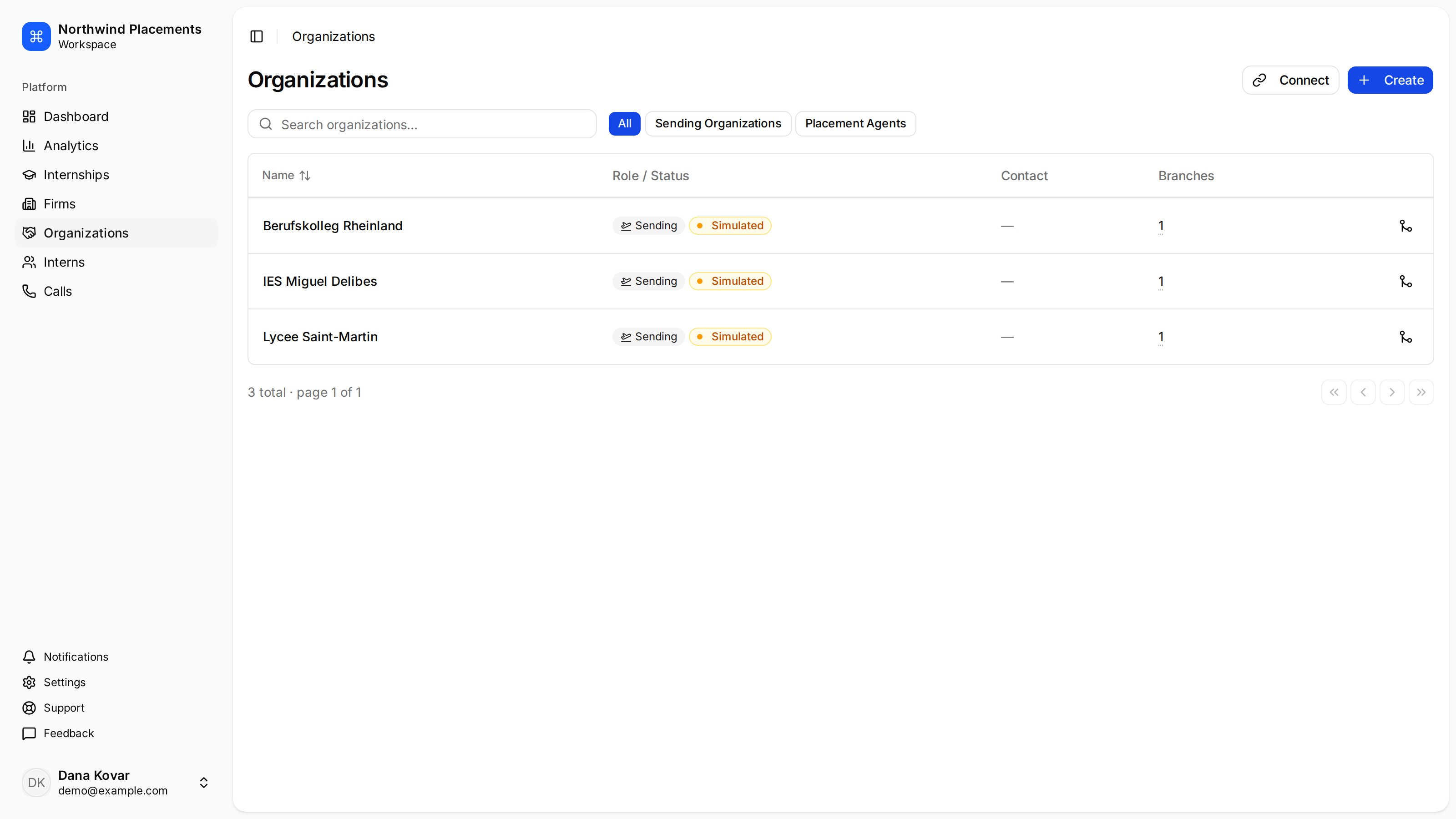
The organization appears under **Sending Organizations** and can be chosen when
you create an internship.
## Create a placeholder instead
Use this when the school hasn't registered with Minto. It behaves like a real
sending organization for planning purposes — you can link it to internships and
replace it later when they do register.
In the sidebar, select **Organizations**.
Select **Create**.
In **Name**, enter the school or agency's name, then select **Create**.
## Result
The organization appears in your list. Filter with the **Sending Organizations**
tab if the list is long.
 ## Troubleshooting
**The code isn't accepted.**
Minto tells you which of three things went wrong: *"No organization found with
this code."*, *"Already connected to this organization."*, or *"Cannot connect
to your own organization."* The first usually means a mistyped character.
A branch code works here too, not just the organization's own code.
**You created a placeholder and now they've registered.**
Connect the real organization with their code, then move the internships across
and remove the placeholder. Don't leave both — you'll end up recording the same
partner twice.
## Troubleshooting
**The code isn't accepted.**
Minto tells you which of three things went wrong: *"No organization found with
this code."*, *"Already connected to this organization."*, or *"Cannot connect
to your own organization."* The first usually means a mistyped character.
A branch code works here too, not just the organization's own code.
**You created a placeholder and now they've registered.**
Connect the real organization with their code, then move the internships across
and remove the placeholder. Don't leave both — you'll end up recording the same
partner twice.