> ## Documentation Index
> Fetch the complete documentation index at: https://myinternshiporganizer.com/docs/llms.txt
> Use this file to discover all available pages before exploring further.
# Invite your team
> Send colleagues an invitation and choose what they can do in Minto.
Invite colleagues so they can run internships alongside you. The role you choose
when inviting decides what they can see and change, so it's worth reading the
descriptions rather than defaulting everyone to Firm Admin.
## Before you begin
* You need the **Firm Admin** role. Coordinators and Operations staff can't
invite people.
* Have the colleague's work email address to hand. The invitation goes to that
address, and they'll use it to sign in.
## Send the invitation
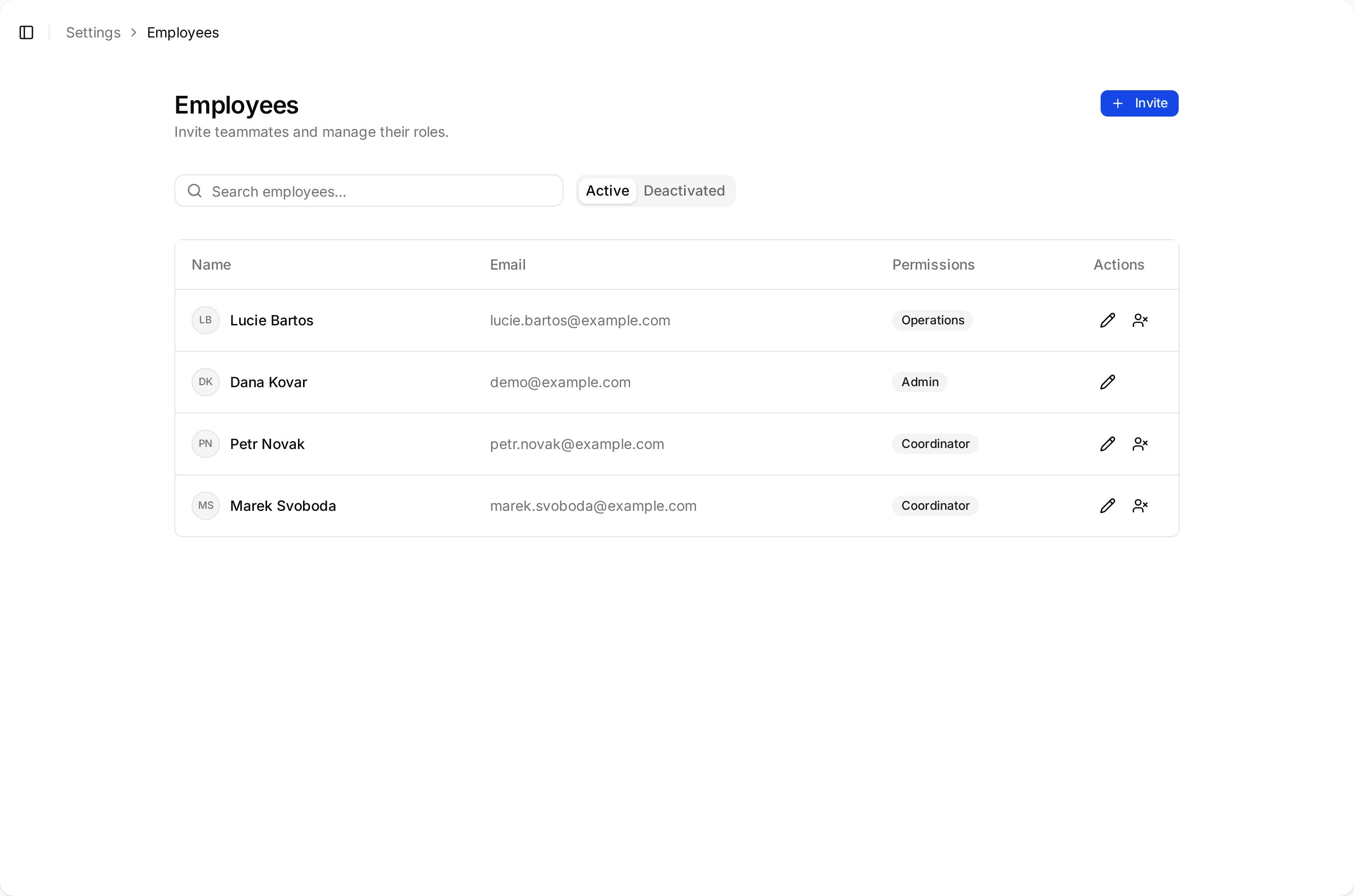
In the sidebar, select **Settings**, then select **Employees**.
Select **Invite**.
In **Email**, enter your colleague's work email address.
Under **Permissions**, select one or more roles. They're checkboxes, not a
single choice — someone can be a Coordinator *and* handle Operations.
Select **Send Invitation**.
## Choose the right role
| Role | What it's for |
| --------------- | -------------------------------------------------------------------------------------------------------------------- |
| **Firm Admin** | Full administrative access to manage the firm, employees and settings. Give this to as few people as the job allows. |
| **Coordinator** | Coordinates internship logistics and can be assigned placements. The right default for most staff. |
| **Operations** | Accompanies interns at events, arrivals and departures (incl. airport pickup). |
Only Firm Admins can invite other people, change billing, or edit company
settings.
Roles aren't exclusive — someone can hold several. Whoever signs your
organization up gets Firm Admin.
## Result
Your colleague receives an invitation email and appears under **Pending
Invitations**, with the code, when it was sent and when it expires. They move
into the **Employees** list once they accept and sign in.
 ## Troubleshooting
**The invitation never arrived.**
Ask your colleague to check their spam folder. There's no resend — select
**Cancel invitation** under Pending Invitations, then invite them again.
**"A person with this email is already invited."**
An invitation to that address is still outstanding. Cancel it before sending
another, even if you only want to change their roles.
**A colleague needs different access.**
Change their roles from the **Employees** list rather than re-inviting them.
Re-inviting won't create a second account and won't change their access.
## Troubleshooting
**The invitation never arrived.**
Ask your colleague to check their spam folder. There's no resend — select
**Cancel invitation** under Pending Invitations, then invite them again.
**"A person with this email is already invited."**
An invitation to that address is still outstanding. Cancel it before sending
another, even if you only want to change their roles.
**A colleague needs different access.**
Change their roles from the **Employees** list rather than re-inviting them.
Re-inviting won't create a second account and won't change their access.