> ## Documentation Index
> Fetch the complete documentation index at: https://myinternshiporganizer.com/docs/llms.txt
> Use this file to discover all available pages before exploring further.
# Manage a host firm
> Add workplaces and contacts, and see everything that's happened with a company.
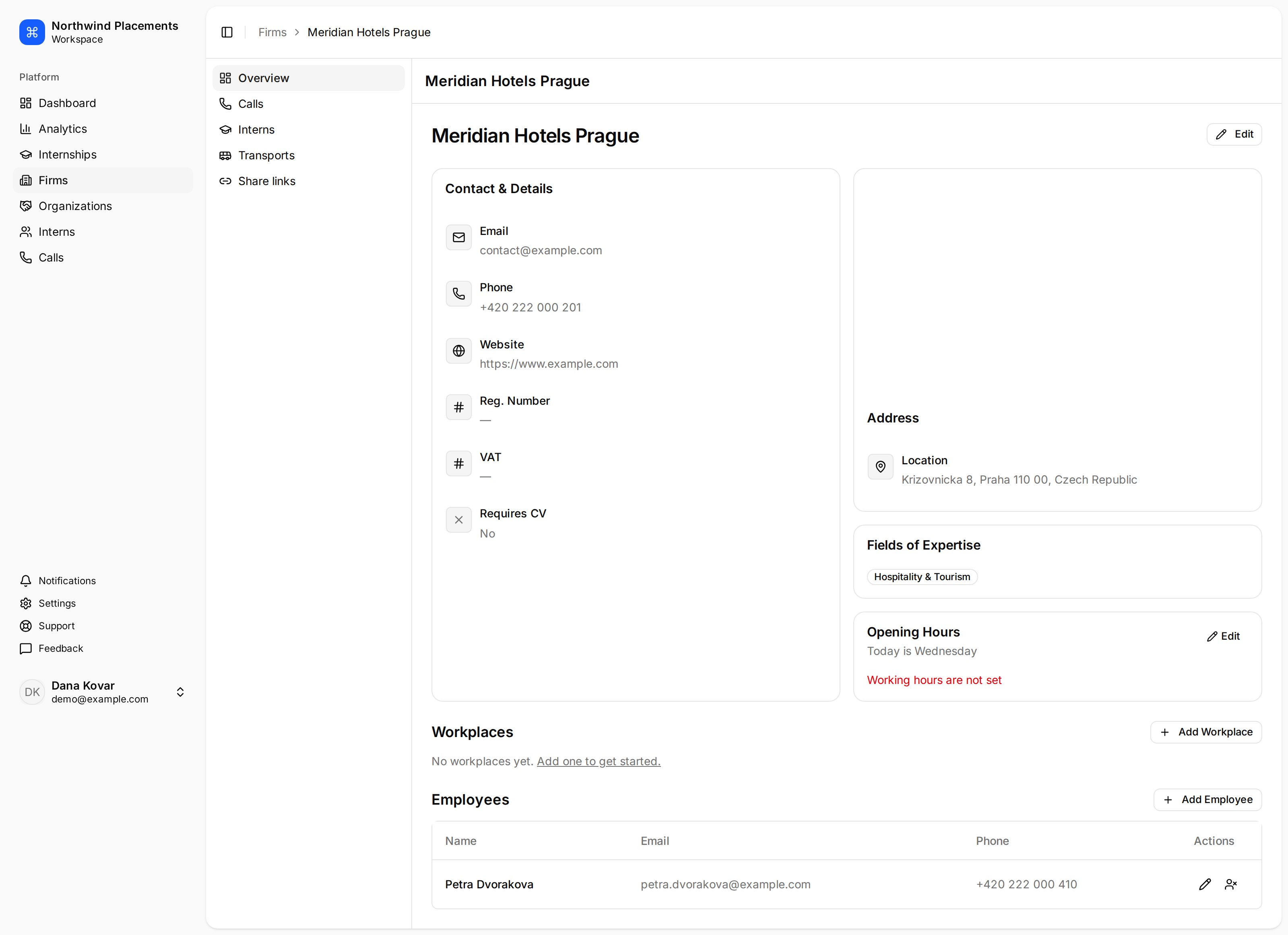
A firm's page is the single view of your relationship with a company: what they
do, who you speak to, every call you've made, and every intern who has worked
there.
## Before you begin
* Any role can edit a firm.
* The firm must already exist — see [Add a host firm](/docs/how-to/add-a-host-firm).
## What's on the page
| Tab | What it shows |
| --------------- | -------------------------------------------------------------------------------------- |
| **Overview** | Contact details, address, fields of expertise, workplaces and employees. |
| **Calls** | Every recruitment call to this firm, with outcomes and how many places they agreed to. |
| **Interns** | Everyone who has worked there, with dates, internship, workplace and status. |
| **Transports** | Transport arranged with this firm. |
| **Share links** | Candidate links sent to this firm and what they did with them. |
The **Calls** tab is the one to check before phoning. It shows what was said last
time and by whom, which stops two colleagues making the same pitch a week apart.
 ## Add an employee
Employees are the people you deal with at the firm. They matter beyond the phone
number: **share link recipients are chosen from a firm's employees**, so a firm
with none can't be sent candidates.
In the sidebar, select **Firms**, then select the firm.
Under **Employees**, select **Add Employee**, enter at least a **Last
Name**, then select **Create**.
## Add a workplace
Workplaces are the separate sites a firm operates — a hotel group with three
properties, a company with two branches. Interns are placed at a workplace
rather than just at the firm, so the intern knows which address to turn up to.
Select **Firms**, then the firm.
Select **Add Workplace**, enter a **Name**, then select **Create**.
Firms with a single site don't need one — placements can sit directly on the
firm, shown as **Without workplace** when assigning.
## What they can host
A firm's **fields of expertise** are what make it appear under **Recommended**
when you're looking for somewhere to place interns. They're shown on the
Overview, but there's no control for editing them in the app today — ask Minto
support to set them.
## Troubleshooting
**The firm doesn't appear under Recommended when logging a call.**
It has no matching field of expertise, it's already been called for this
internship, or it's marked **Don't Contact**. See
[How firms get recommended](/docs/reference/firm-recommendations).
**"No active employees on this firm."**
Share links go to a firm's employees. Either the firm has none recorded, or all
of them have been deactivated.
## Add an employee
Employees are the people you deal with at the firm. They matter beyond the phone
number: **share link recipients are chosen from a firm's employees**, so a firm
with none can't be sent candidates.
In the sidebar, select **Firms**, then select the firm.
Under **Employees**, select **Add Employee**, enter at least a **Last
Name**, then select **Create**.
## Add a workplace
Workplaces are the separate sites a firm operates — a hotel group with three
properties, a company with two branches. Interns are placed at a workplace
rather than just at the firm, so the intern knows which address to turn up to.
Select **Firms**, then the firm.
Select **Add Workplace**, enter a **Name**, then select **Create**.
Firms with a single site don't need one — placements can sit directly on the
firm, shown as **Without workplace** when assigning.
## What they can host
A firm's **fields of expertise** are what make it appear under **Recommended**
when you're looking for somewhere to place interns. They're shown on the
Overview, but there's no control for editing them in the app today — ask Minto
support to set them.
## Troubleshooting
**The firm doesn't appear under Recommended when logging a call.**
It has no matching field of expertise, it's already been called for this
internship, or it's marked **Don't Contact**. See
[How firms get recommended](/docs/reference/firm-recommendations).
**"No active employees on this firm."**
Share links go to a firm's employees. Either the firm has none recorded, or all
of them have been deactivated.