> ## Documentation Index
> Fetch the complete documentation index at: https://myinternshiporganizer.com/docs/llms.txt
> Use this file to discover all available pages before exploring further.
# Record arrival and departure
> Set travel dates, stations and connection numbers so everyone knows when the group lands.
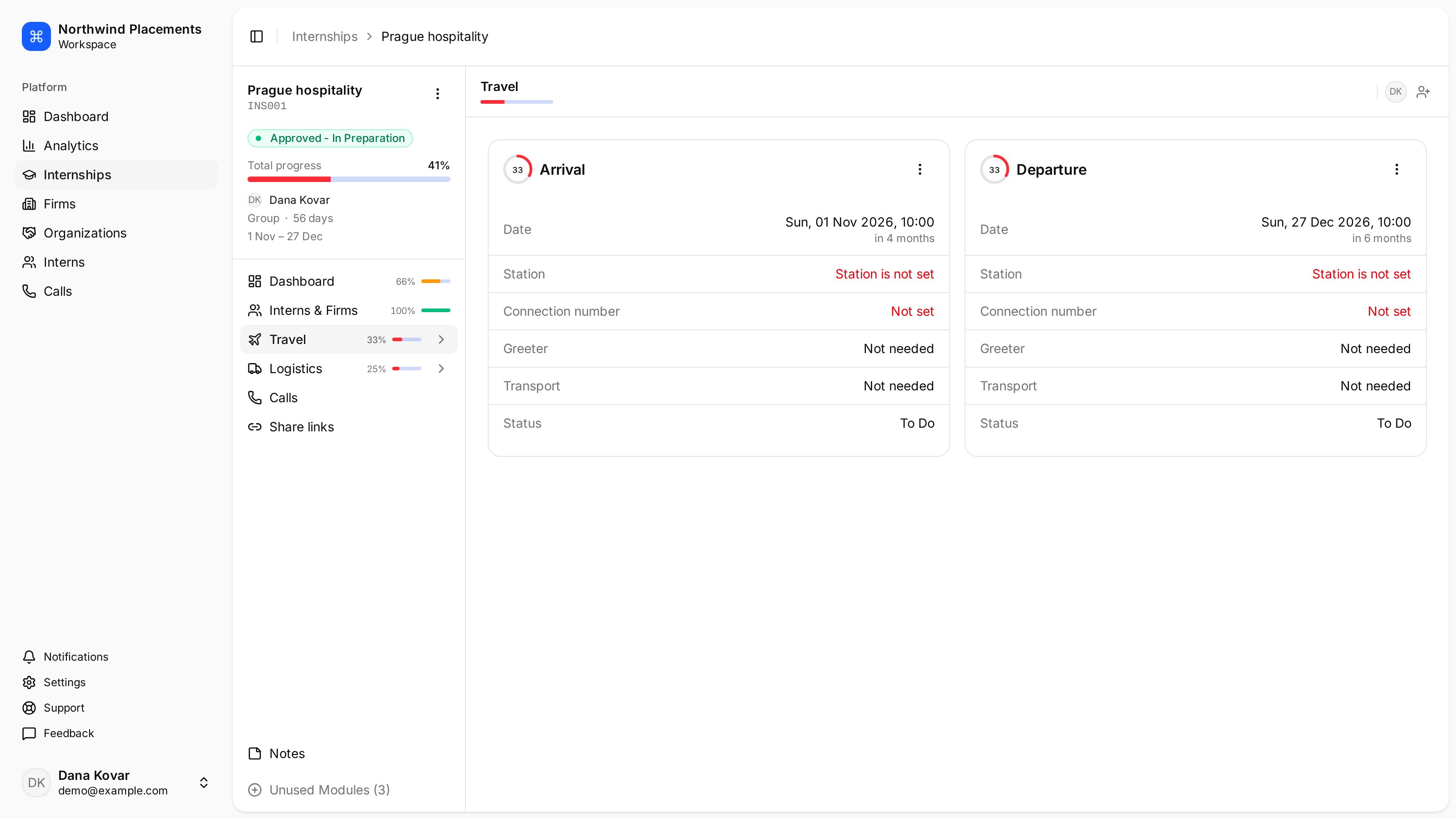
The Travel section holds when the group arrives and leaves, where they land, and
who meets them. Arrival and departure are separate modules within it. It's what turns an internship with a rough window into one people
can plan around.
Arrival and departure are recorded separately, so a group arriving on a booked
flight and leaving on dates still to be confirmed is a perfectly normal state.
## Before you begin
* Any role can edit travel details.
* **Arrival** and **Departure** are separate modules, and both are usually on
by default. If one is missing from the Travel section, turn it on from
**Unused Modules** — possible only while the internship is in **Setup**.
## Record the arrival
In the sidebar, select **Internships**, select the internship, then select
**Travel**.
Under **Arrival**, select **Date**, then choose the date and time and select
**Save**.
Select **Station** and choose the airport, station or terminal.
Select **Flight number** — or **Train number** or **Bus number**, depending
on the station you picked — and enter it. It's what anyone meeting the group
will actually look up.
Select **Greeter** if someone from your team is meeting the group, and
**Transport** if you're arranging a pickup.
Repeat for **Departure**. The fields are the same.
 ## How travel dates affect the rest of Minto
Setting an arrival date does more than fill in a field.
* **The internship's dates become firm.** Until then the internships list shows
the preliminary window with a `~` in front of it. Once arrival and departure
are set, those exact dates are used instead.
* **The status can change on its own.** An approved internship whose arrival
date has passed shows as **Running**. It shows as **Finished** once the
departure date has passed — but only if both dates are set. See
[Internship statuses](/docs/reference/internship-statuses).
That's the reason to record travel as soon as it's booked rather than at the end
— several other screens read from it.
## Turning the module off
If an internship doesn't need travel tracked, open the **⋮** menu on the arrival
or departure card and select **Disable Arrival** or **Disable Departure**.
Two caveats. Modules can only be changed while the internship is in **Setup** —
once approved they're fixed.
And disabling doesn't take the leg out of the progress calculation: arrival and
departure always occupy a slot. It only shrinks what counts as complete down to
the date alone. So a disabled leg with a date jumps to 100%, and one without a
date sits at 0% and still drags the total down. Don't disable them to tidy up a
percentage — it moves in whichever direction the dates happen to fall.
## Troubleshooting
**The station you need isn't listed.**
Stations are shared across all of Minto rather than being yours alone. Add the
one you need and it'll be available from then on.
**One date has a `~` and the other doesn't.**
That's normal — the two ends are independent. Each shows its preliminary value,
in amber, until that end has a real date.
## How travel dates affect the rest of Minto
Setting an arrival date does more than fill in a field.
* **The internship's dates become firm.** Until then the internships list shows
the preliminary window with a `~` in front of it. Once arrival and departure
are set, those exact dates are used instead.
* **The status can change on its own.** An approved internship whose arrival
date has passed shows as **Running**. It shows as **Finished** once the
departure date has passed — but only if both dates are set. See
[Internship statuses](/docs/reference/internship-statuses).
That's the reason to record travel as soon as it's booked rather than at the end
— several other screens read from it.
## Turning the module off
If an internship doesn't need travel tracked, open the **⋮** menu on the arrival
or departure card and select **Disable Arrival** or **Disable Departure**.
Two caveats. Modules can only be changed while the internship is in **Setup** —
once approved they're fixed.
And disabling doesn't take the leg out of the progress calculation: arrival and
departure always occupy a slot. It only shrinks what counts as complete down to
the date alone. So a disabled leg with a date jumps to 100%, and one without a
date sits at 0% and still drags the total down. Don't disable them to tidy up a
percentage — it moves in whichever direction the dates happen to fall.
## Troubleshooting
**The station you need isn't listed.**
Stations are shared across all of Minto rather than being yours alone. Add the
one you need and it'll be available from then on.
**One date has a `~` and the other doesn't.**
That's normal — the two ends are independent. Each shows its preliminary value,
in amber, until that end has a real date.