> ## Documentation Index
> Fetch the complete documentation index at: https://myinternshiporganizer.com/docs/llms.txt
> Use this file to discover all available pages before exploring further.
# Update your account
> Change your name, photo, sign-in email or password.
Your account settings cover your own details rather than your organization's.
Everyone can change their own; nobody else can change them for you.
## Change your details
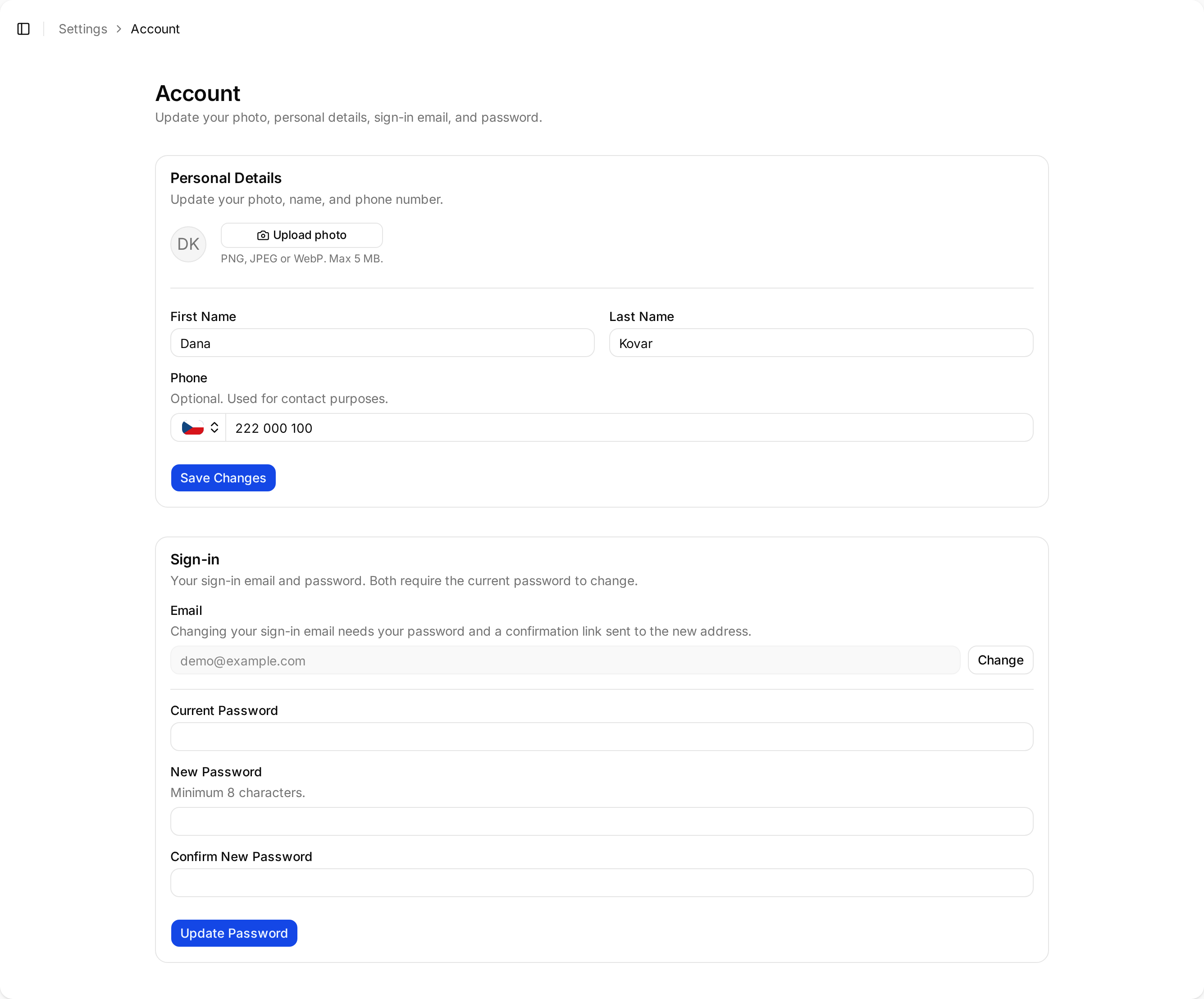
In the sidebar, select **Settings**, then select **Account**.
Edit **First Name**, **Last Name** and **Phone**, then select **Save
Changes**.
Select **Upload photo**. PNG, JPEG or WebP, up to 5 MB.
Your photo appears next to internships you're responsible for, which makes
a shared list easier to scan.
 ## Change your password
Under **Sign-in**, enter your **Current Password**, then **New Password** and
**Confirm New Password**, and select **Update Password**. Minimum eight
characters.
## Change your sign-in email
This one takes two steps on purpose, since it changes how you get into Minto.
Under **Sign-in**, select **Change** next to your email, enter the new
address and your current password.
Minto sends a confirmation link to the **new** address. Open it to finish.
Until you open that link, your old address is still the one that signs you in.
## Troubleshooting
**The confirmation email hasn't arrived.**
Check the spam folder of the *new* address, not the old one.
If retrying never works, the address probably already belongs to another Minto
account. Minto deliberately shows the same confirmation message either way
rather than revealing whether an address is registered, so there's no error to
see. Use a different address, or contact support.
**You've forgotten your password.**
Use **Forgot your password?** on the sign-in page. You don't need to be signed in,
and you don't need an administrator — the reset link goes to your own address.
**A colleague needs their email changed.**
They have to do it themselves. Firm Admins can change someone's *roles*, but not
their sign-in details.
## Change your password
Under **Sign-in**, enter your **Current Password**, then **New Password** and
**Confirm New Password**, and select **Update Password**. Minimum eight
characters.
## Change your sign-in email
This one takes two steps on purpose, since it changes how you get into Minto.
Under **Sign-in**, select **Change** next to your email, enter the new
address and your current password.
Minto sends a confirmation link to the **new** address. Open it to finish.
Until you open that link, your old address is still the one that signs you in.
## Troubleshooting
**The confirmation email hasn't arrived.**
Check the spam folder of the *new* address, not the old one.
If retrying never works, the address probably already belongs to another Minto
account. Minto deliberately shows the same confirmation message either way
rather than revealing whether an address is registered, so there's no error to
see. Use a different address, or contact support.
**You've forgotten your password.**
Use **Forgot your password?** on the sign-in page. You don't need to be signed in,
and you don't need an administrator — the reset link goes to your own address.
**A colleague needs their email changed.**
They have to do it themselves. Firm Admins can change someone's *roles*, but not
their sign-in details.