> ## Documentation Index
> Fetch the complete documentation index at: https://myinternshiporganizer.com/docs/llms.txt
> Use this file to discover all available pages before exploring further.
# Roles and permissions
> What each role can do, and why a colleague might not see a page you can see.
Roles gate **administrative** actions — settings, billing, employees. Day-to-day
work is open to everyone.
People can hold more than one role — you can tick several when inviting. Whoever
signs your organization up gets Firm Admin.
## The roles
These are the roles for a placement agent. An organization that is also a
sending organization has a second set — Teacher and Companion — alongside them.
| Role | What it's for |
| --------------- | --------------------------------------------------------------------------------- |
| **Firm Admin** | Full administrative access to manage the firm, employees and settings. |
| **Coordinator** | Coordinates internship logistics and can be assigned placements. |
| **Operations** | Accompanies interns at events, arrivals and departures, including airport pickup. |
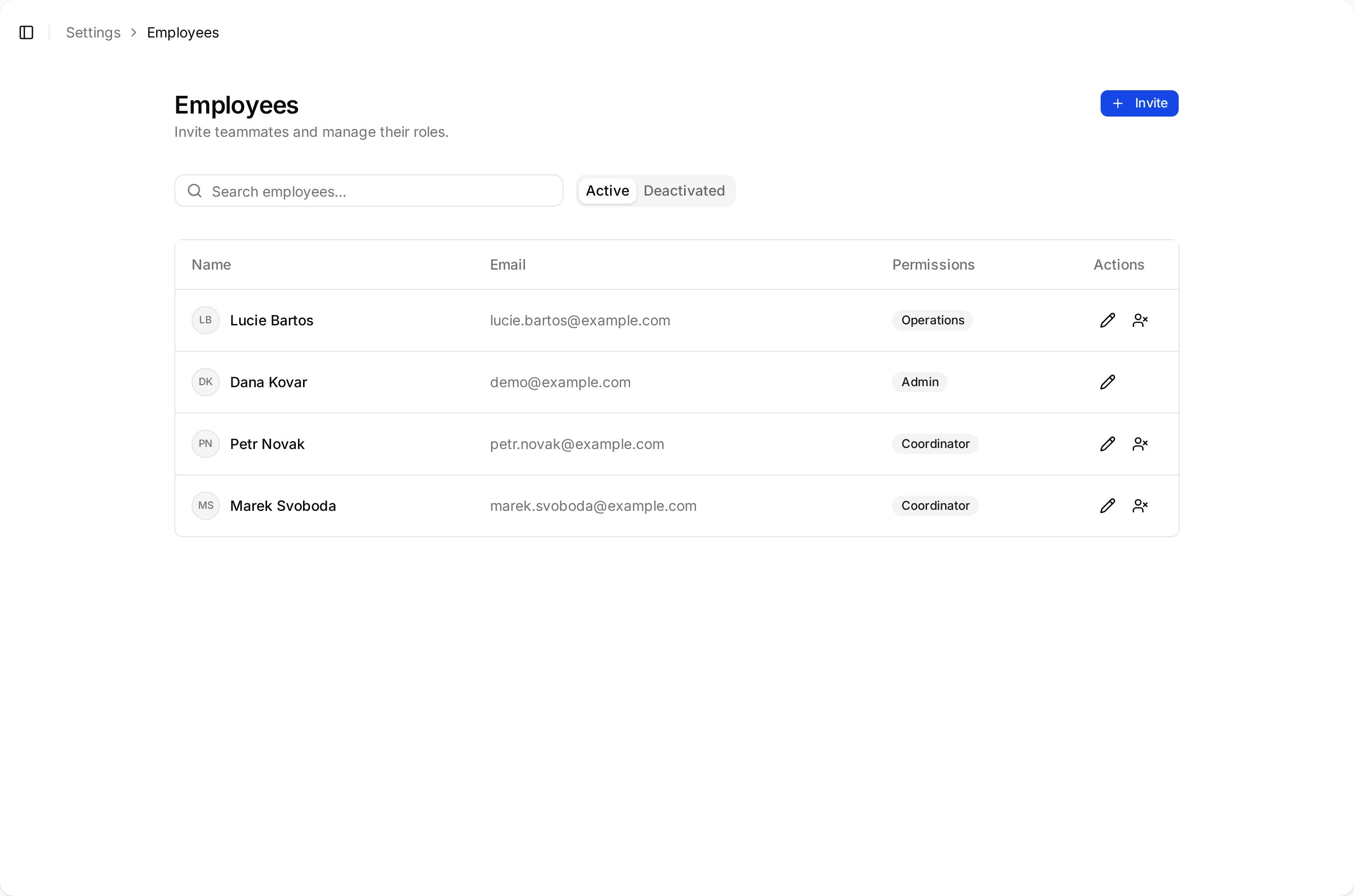
Roles are set when you invite someone, and can be changed afterwards from
**Settings** > **Employees**.
## What everyone can do
Every role can do the core work. There's no role that only reads.
* View internships, interns, host firms and organizations
* Create and edit internships
* Add interns to an internship and place them with host firms
* Add and edit host firms
* Connect sending organizations
* Create, revoke and manage share links, and approve or decline intern requests
This surprises people who expect Operations staff to be read-only. If you need
someone who can look but not change, Minto can't express that today — the
narrowest role still has full day-to-day access.
## What only Firm Admins can do
| Task |
| ------------------------------------------------------ |
| Invite colleagues and change their roles |
| Edit the company profile and settings |
| Manage billing and the plan |
| Change share link defaults (expiry, auto-approve) |
| Merge duplicate placeholder organizations and branches |
Three of these are only enforced when saving: **Employees**, **Company** and
**Share links** all open for anyone who navigates to them, and only refuse on
save. So "I can see the page" doesn't mean "I have the role".
The one exception is the **Pending Invitations** panel on the Employees page,
which refuses to load at all without the role.
## Plan limits are not roles
Some things are gated by your **plan**, not your role. A Firm Admin on a plan
without the feature can't do these either:
| Capability | Requires |
| ------------------------------------ | -------------------------- |
| Share links | Intern share links |
| Editing your own fields of expertise | Manage fields of expertise |
| API tokens | API access |
| Custom branding | Custom branding |
The difference matters when you're troubleshooting. A **role** problem affects
one person; a **plan** problem affects everyone in your organization, including
administrators.
## Roles outside your organization
The three roles above apply to your own staff. People at other organizations
carry different roles, and you'll see these on their records rather than in your
employees list:
* At a **host firm** — a contact person, who you arrange placements with, and a
tutor, who supervises the intern day to day.
* At a **sending organization** — a teacher, and a companion who travels with
the group.
You don't assign these from your employees list. They belong to the firm or
organization record.
## Changing someone's role
Change the role from **Settings** > **Employees** rather than re-inviting the
person. Re-inviting an existing colleague doesn't create a second account and
doesn't change their access.
The API honours a role change immediately, but the app keeps the old roles until
the person signs out and back in. Ask them to do that after any change.