Before you begin
- Any role can add interns.
- The internship must be in Setup or Active — that is, not Finished, Expired or Rejected. See What you can change, and when.
- The internship must have room. Add Intern greys out at the planned count whatever the status; the server only enforces it once the internship is approved.
Add an intern
1
Open the internship
In the sidebar, select Internships, then select the internship.
2
Go to the roster
Select Interns & Firms.
3
Start adding
Select Add Intern.
4
Enter their details
Enter First Name and Last Name. Both are required here; Email
is optional.Minto suggests interns you already have as you type. Selecting a suggestion
adds them straight away, without going through the form — see the note
below on what that does and doesn’t do.
5
Save
Select Create New.
Every add creates a new intern record
This surprises people, and it’s deliberate. Selecting someone from the suggestions does not reuse their record — a fresh intern is created either way. Intern records aren’t shared or matched by email, so the same student travelling with you twice is two records. That’s a privacy decision rather than an oversight: matching on email would let one organization discover whether another had a given student on its books. In practice, don’t worry about “duplicates” in the way you would elsewhere. Two records for the same person across two internships is the normal state.Result
The intern appears on the Interns tab, and the counter goes up —Interns (3 / 3) means three of three planned places are taken. Their status stays
unassigned until a firm has agreed to take them.
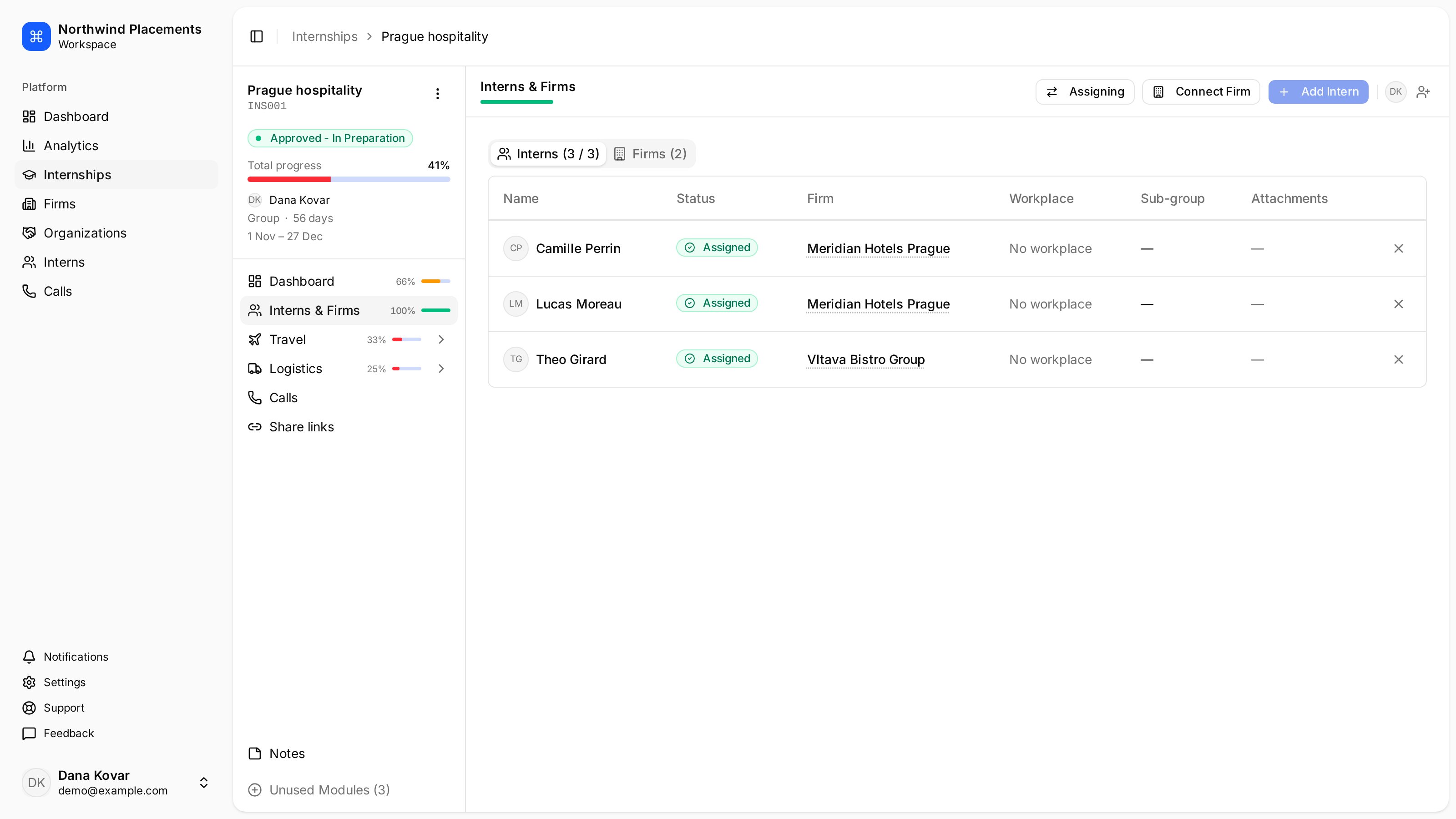
The Interns & Firms section, with all three interns placed at host firms.
Adding to an approved internship uses a seat
Once an internship is approved, each intern you add consumes one of your plan’s intern seats for the current period. Before approval, adding costs nothing.Troubleshooting
Add Intern is greyed out. The roster is at the planned count — the counter reads(3 / 3) or similar.
Raise the planned number of interns, which is only possible while the internship
is still in Setup.
“Cannot add more interns: this internship is at its planned count of 3.”
The same limit, from the server. It applies only to approved internships.
“Cannot add interns to an approved internship without a planned count. Set a
planned count before approving.”
Exactly that — and after approval you can’t change it, so the internship has to
go back to To Be Rescheduled first.
“Seat cap reached: 5/5 interns approved this period; adding this intern would
exceed the cap.”
Your plan’s intern seats for this period are used up. A Firm Admin can check
usage under Settings > Billing.
You need to remove someone.
Select the ✕ and confirm. This only works while the internship is in Setup —
on an approved one the removal fails when you confirm it. Set the status back to
To Be Rescheduled first.
Next
Log a recruitment call
Interns on the roster need a firm that has agreed to take them.