The usual path
1
Call firms until someone says yes
Log each call as you go — see
Log a recruitment call. When a firm agrees,
record the outcome Intern approved and how many places they’ll take.Recording places is what matters here: it connects the firm to the
internship automatically. You don’t need to add it by hand afterwards.
2
Assign the interns
On the internship, select Interns & Firms, then Assigning.
3
Choose an intern
Select an intern under Interns to assign.
4
Choose where they'll work
Select the firm you want them at. If the firm has workplaces set up, select
the specific workplace; otherwise select Without workplace.The intern moves under that firm immediately.
5
Repeat and close
Assign the remaining interns, then close the panel. There’s no separate save
— each assignment applies as you make it.
Before you begin
- Any role can log calls and assign interns.
- The internship must still be in Setup — that is, Requested or To Be Rescheduled. Connecting firms and assigning interns both stop working once it’s approved, so do the placement before you approve. See What you can change, and when.
- The interns must already be on the internship’s roster.
- The firm must exist in your Firms list before you can call it, and needs at least one workplace for a call to record places against — see Manage a host firm.
Connecting a firm without a call
Connect Firm, on the Interns & Firms section, attaches a firm to the internship directly. It’s the shortcut, not the normal route. Use it when the arrangement already exists and there’s no call to log — a firm you place with every year, or a placement agreed by email months ago. Anything you connect this way has no call history behind it, so a colleague looking at the firm later won’t see why it’s there. If you’re actively recruiting, log the call instead. You get the connection and the record of who agreed to what.Result
Every assigned intern shows Assigned and their firm on the Interns tab, and the internships list counts them under Assigned.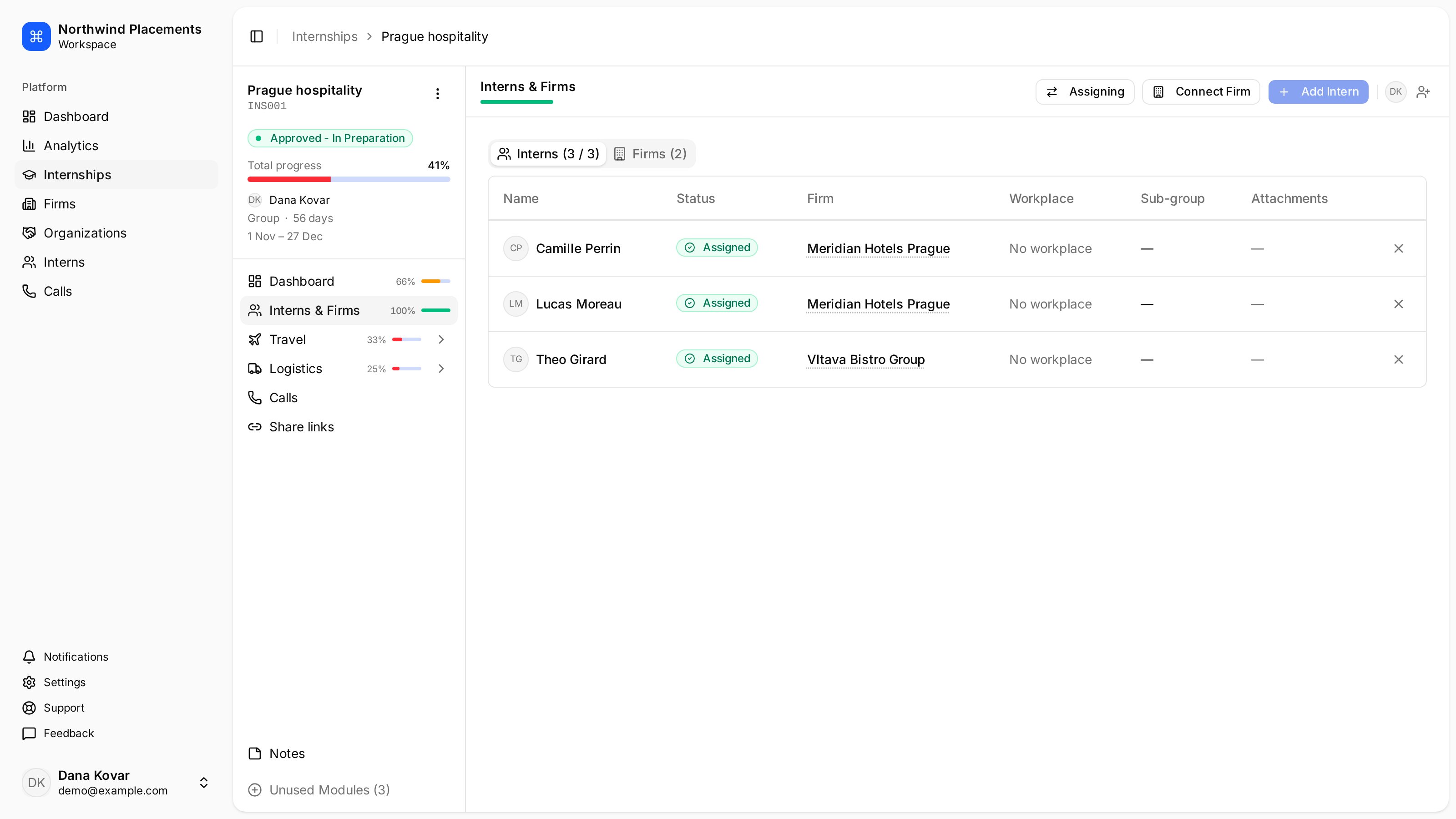
Each intern shows their status and the host firm they're placed at.
1/3 under Assigned has three interns on the roster
and one of them placed.