Before you begin
- You need the Firm Admin role. Coordinators and Operations staff can’t invite people.
- Have the colleague’s work email address to hand. The invitation goes to that address, and they’ll use it to sign in.
Send the invitation
1
Open your employees
In the sidebar, select Settings, then select Employees.
2
Start an invitation
Select Invite.
3
Enter the email address
In Email, enter your colleague’s work email address.
4
Choose what they can do
Under Permissions, select one or more roles. They’re checkboxes, not a
single choice — someone can be a Coordinator and handle Operations.
5
Send it
Select Send Invitation.
Choose the right role
Only Firm Admins can invite other people, change billing, or edit company
settings.
Roles aren’t exclusive — someone can hold several. Whoever signs your
organization up gets Firm Admin.
Result
Your colleague receives an invitation email and appears under Pending Invitations, with the code, when it was sent and when it expires. They move into the Employees list once they accept and sign in.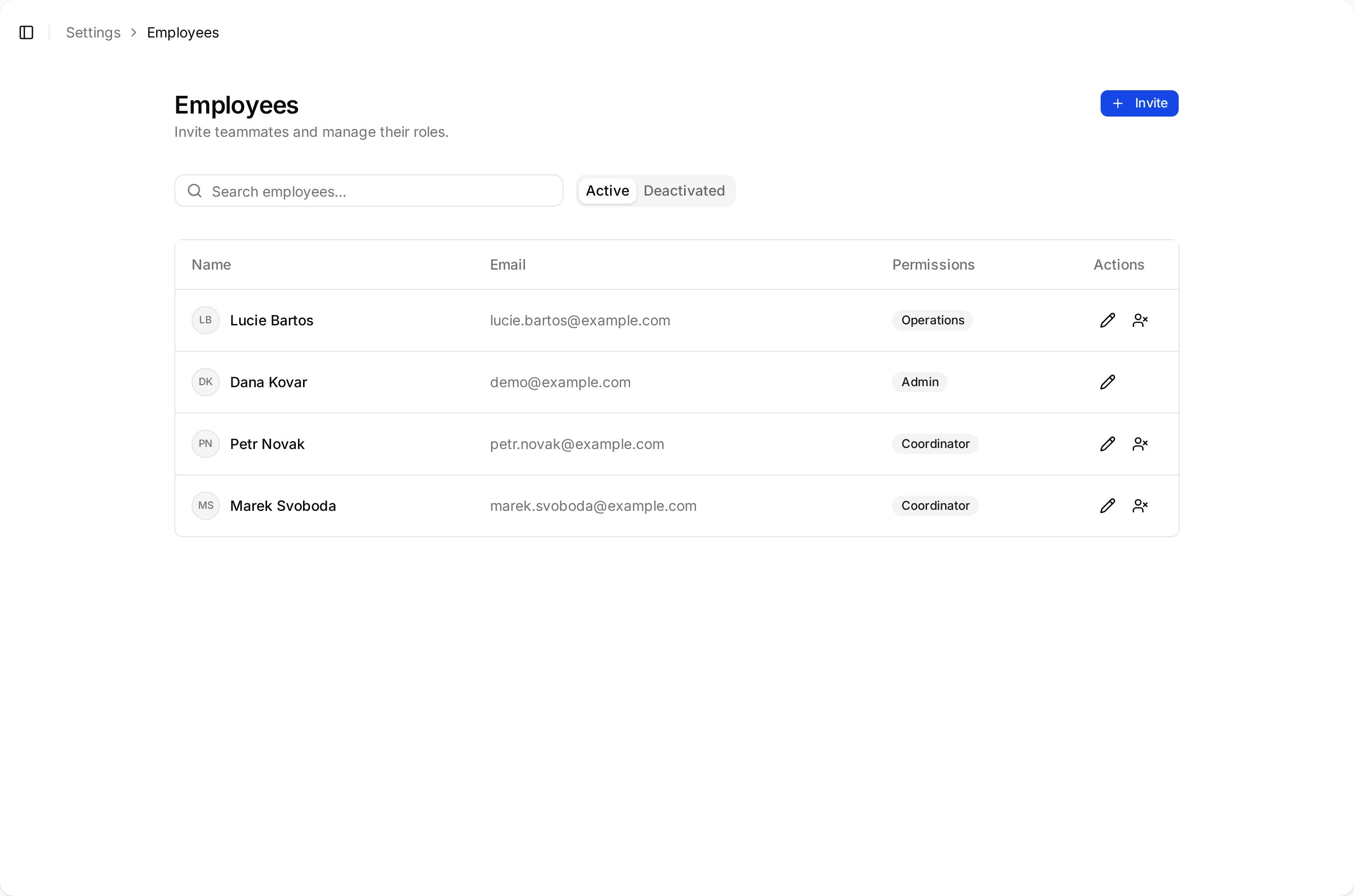
The Employees list showing each colleague's role.