Before you begin
- Your plan must include intern share links. If the option isn’t there, it’s a plan limit, not your role — any Firm Admin can check under Settings > Billing.
- The host firm must already exist and have at least one active employee to send the link to.
- The internship needs interns who aren’t placed yet. A link with nothing to show is no use to the firm.
Create the share link
1
Open the internship
In the sidebar, select Internships, select the internship, then select
Share links.
2
Start a new link
Select New share link.
3
Choose the firm and who receives it
Choose the firm under Firm, then choose one or more people under
Recipients. Recipients only become selectable once you’ve picked a firm.Everyone chosen gets their own private URL.
4
Decide which interns they see
Choose one:
- All currently unassigned keeps itself up to date. Interns drop off the moment they’re placed, and newly added unplaced interns appear on their own. You don’t have to re-share.
- Pick specific interns fixes the shortlist. Nobody new is ever added to it.
5
Set an expiry
Choose one of the presets or pick a date. If the internship has a start
date you’ll also see Until start, and any preset landing on or after
that start is hidden — so close to departure the only choices may be 7d
and Until start.The default comes from your organization’s share link settings.
6
Optional: add a note
Under Note, write a message for the recipients. Markdown works, and
Preview shows how it’ll look.
7
Create it
Select Create share link.
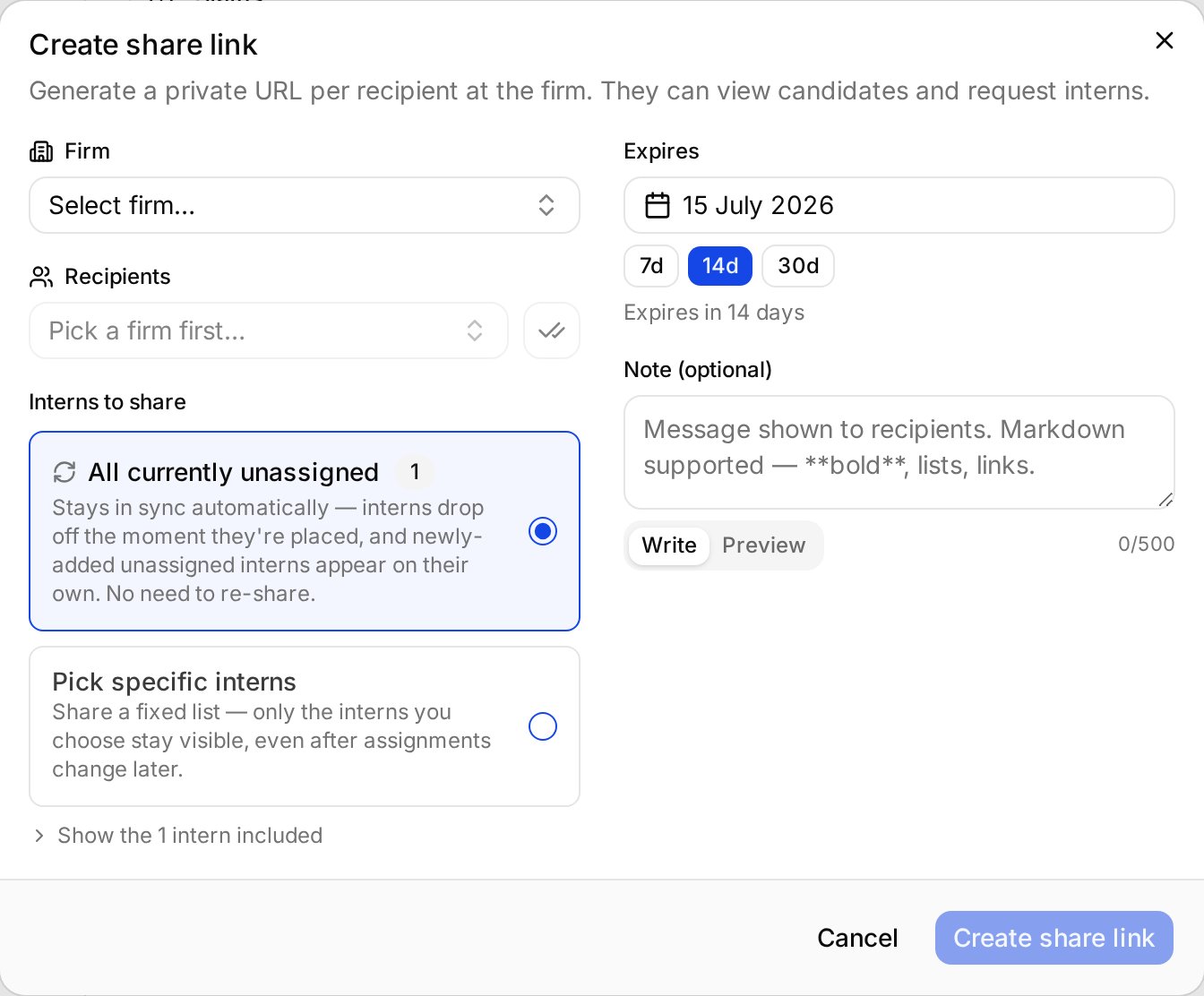
Creating a share link. The intern selection mode is the decision that matters most.
Result
Each recipient gets their own URL, shown in the dialog for you to copy and send — Minto doesn’t email it for you. From that link they can see the interns you shared and request the ones they want. Review candidates you’ve been sent describes the page from their side, and is worth sending along with the link.What happens when a firm requests an intern
By default a request arrives as pending and nothing changes until someone on your team acts on it. Open the share link and select Approve to assign the intern to that firm, or decline it. You can change this under Settings > Share links:
Auto-approve is a single organization-wide setting read at the moment a
recipient submits — not something fixed per link. Switching it on makes every
existing link auto-approve from then on, including ones sent months ago.
Requests already pending stay pending until you handle them.
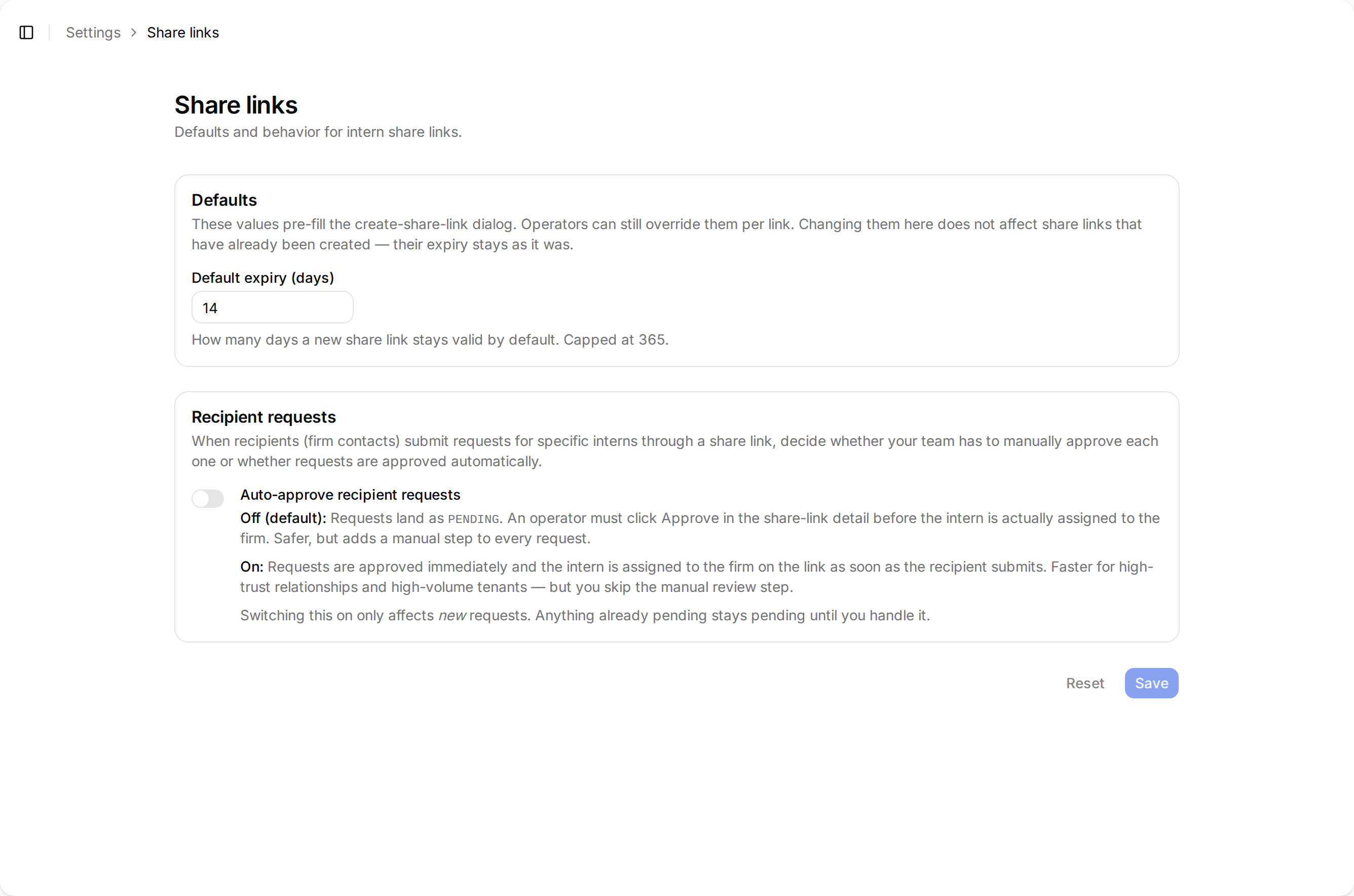
Default expiry pre-fills new links. Auto-approve is live and applies to every link, including ones already sent.